
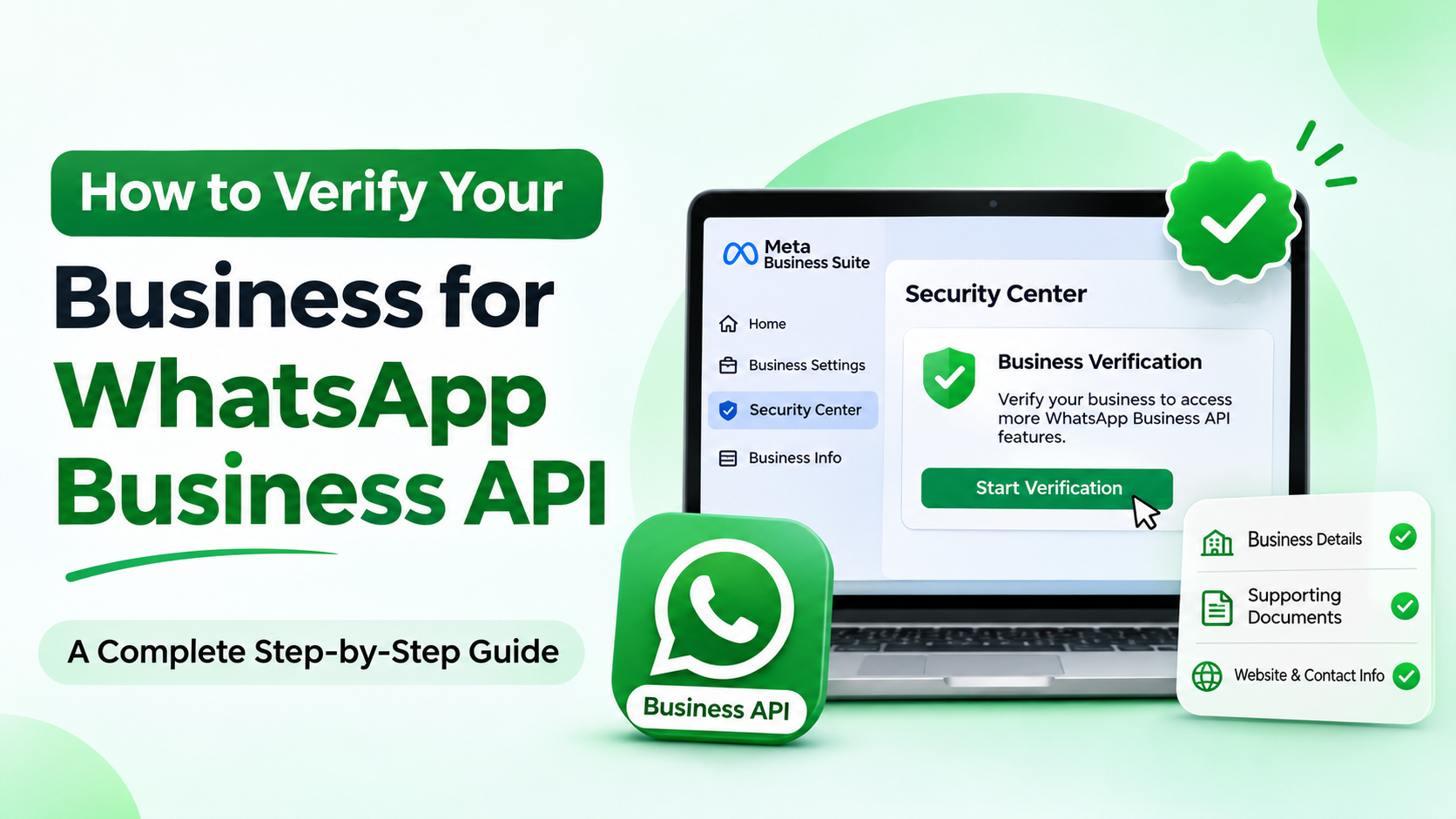
How to Verify Your Business for WhatsApp Business API: A Complete Step-by-Step Guide
Introduction
WhatsApp has become one of the most powerful communication channels for businesses. From small businesses and startups to large enterprises, companies are using WhatsApp to communicate with customers, generate leads, provide customer support, send notifications, and automate their marketing activities.
If you want to use the WhatsApp Business API (WhatsApp Business Platform), understanding Meta’s business verification process is an important step.
Business verification helps Meta confirm that your company is a legitimate business. It involves submitting business information and supporting documents through Meta Business Suite or Business Settings.
However, many businesses get confused about the difference between business verification, WhatsApp Business Account verification, and the WhatsApp Blue Tick.
In this guide, we will explain how to verify your business for WhatsApp Business API, what documents you need, how the verification process works, and how to avoid common mistakes.
What Is WhatsApp Business API Business Verification?
WhatsApp Business API business verification is a process through which Meta confirms the identity and legitimacy of your business.
During this process, Meta checks whether the business information submitted in your Meta Business Portfolio matches the information available in your official business documents.
The verification process helps Meta establish that:
- Your business is a legitimate organization.
- You are authorized to represent the business.
- Your business name and address are genuine.
- Your WhatsApp Business account is associated with the correct organization.
Once your business completes verification, you can become eligible for additional WhatsApp Business Platform capabilities, subject to Meta’s applicable requirements and account eligibility.
According to WhatsApp’s business onboarding guidance, business verification is one of the important steps in setting up a WhatsApp Business Platform account.
Difference Between Business Verification, WhatsApp Verification and Blue Tick
Before starting the process, it is important to understand that these terms refer to different things.
| Verification type | What it means |
|---|---|
| Meta Business Verification | Confirms your company’s legal identity. |
| WhatsApp Business Account | Identifies an account operating on WhatsApp Business Platform. |
| WhatsApp Official Business Account (OBA) | Recognizes an authentic and notable brand with an official badge. |
| Meta Verified | A separate paid verification subscription, subject to availability and eligibility. |
Does Meta Business Verification automatically provide a Blue Tick?
No. Completing Meta Business Verification does not automatically provide the WhatsApp Blue Tick.
The Official Business Account badge has separate eligibility requirements. Meta considers brand authenticity, notability, compliance, and other factors.
Meta Verified is also a separate subscription product and should not be confused with standard business verification.
Documents Required for WhatsApp Business API Verification
Before starting the verification process, prepare your business documents. The exact documents requested may vary depending on your country, business type, and Meta’s verification requirements.
For businesses in India, the following documents can help establish your business identity.
A. Business Registration Documents
Depending on your business structure, prepare relevant documents such as:
- Certificate of Incorporation (Private Limited or OPC company).
- GST Registration Certificate.
- Udyam Registration Certificate (MSME).
- Shop and Establishment Registration Certificate.
- Partnership Registration Certificate, where applicable.
- Other government-issued business registration documents accepted by Meta.
B. Business Address Proof
You may need supporting documents that establish your registered business address, such as:
- Electricity bill.
- Telephone or internet bill.
- Bank statement showing the business address.
- Government-issued business registration document containing the address.
C. Business Contact Information
Make sure you have access to:
- Official business phone number.
- Business email address.
- Company website.
- Business address.
- Legal business name.
Important: Not every document listed above is automatically accepted. Check Meta’s document options during the application process and upload documents that meet its requirements. Your legal business name and address should match the submitted information.
Prerequisites Before Applying for Business Verification
Complete the following preparations before submitting your application.
1. Create a Meta Business Portfolio
You need a Meta Business Portfolio (previously known as Meta Business Manager) to manage your company’s business assets.
Visit: Meta Business Suite
2. Get Admin Access
Make sure you have full control or the necessary administrative permissions for the business portfolio.
3. Add Your Business Information
Enter the following details in your business settings:
- Legal business name.
- Business address.
- Business phone number.
- Business email address.
- Official website.
- Tax identification details, if requested.
4. Create a Professional Business Website
A business website helps establish your company’s online presence. Ensure that it:
- Uses HTTPS security.
- Displays your company or brand name.
- Contains accurate business contact details.
- Provides information about your products or services.
- Is accessible without errors.
5. Check Your Business Information
Review your documents and Meta Business Portfolio information before submitting. Avoid differences in spelling, company names, addresses, and other important details.
How to Verify Your Business for WhatsApp Business API – Step-by-Step Process
Follow these steps to submit your business verification application.

Step 1: Log In to Meta Business Suite
Visit:https://business.facebook.com/
Log in using the Facebook account that has administrative access to your company’s Meta Business Portfolio.
If you have multiple business portfolios, select the correct portfolio associated with your company.
Step 2: Open Business Settings
Navigate to your business settings.
Look for the Business Information section and confirm that your business details are complete.
Check the following:
- Legal business name.
- Address.
- Phone number.
- Website.
- Business email.
Step 3: Open the Security Center
Go to the Security Center in Business Settings.
Look for the Business Verification section.
If your business is eligible to start verification, you may see a Start Verification option.

Note: Meta may change its dashboard layout and verification options. Some businesses may see different screens or may not need to complete verification immediately.
Step 4: Enter Your Legal Business Details
Meta may ask you to provide information about your organization.
Enter the information exactly as it appears on your official business documents.
For example:
| Field | Information |
|---|---|
| Business Name | Your registered company name |
| Country | India |
| Business Address | Registered business address |
| Phone Number | Official business contact number |
| Website | Your company website |
| Business Email | Official company email |
Do not use an abbreviated business name if your registration certificate contains the complete legal name.
Step 5: Upload Supporting Documents
Select the appropriate document type and upload the requested supporting documents.
Ensure that:
- Documents are clear and readable.
- All important details are visible.
- Documents are valid and not expired.
- The business name matches your Meta Business Portfolio.
- The address matches your submitted business information.
If Meta requests additional documents, provide them through the official verification interface.
Step 6: Complete Business Contact Verification
Meta may offer different methods to confirm your business contact information.
Depending on the available options, you may be asked to verify through:
- Business email.
- Phone number.
- SMS or phone call.
- Domain verification or another verification method.
Select the method available to your business and follow the instructions displayed on the screen.
Step 7: Submit Your Verification Application
Review all information carefully before submitting.
After submission, Meta will review your application and supporting documents.
You can monitor your application status through the Security Center in Meta Business Suite.
Step 8: Check Your Verification Status
Your application may display different statuses, including:
- Not Verified.
- In Review.
- Additional Information Required.
- Verified.
- Rejected.
If Meta requests additional information, follow the instructions and submit the required documents.
How Long Does WhatsApp Business API Verification Take?
The verification timeline depends on the completeness of your application, document quality, and Meta’s review process.
There is no guaranteed approval timeline for every business.
In some cases, verification may be completed quickly. Other applications may require additional documentation or manual review.
To avoid unnecessary delays:
- Submit accurate business details.
- Upload clear supporting documents.
- Use valid registration documents.
- Monitor your Meta Business Suite notifications.
- Respond promptly to additional verification requests.
Do not submit repeated applications without first checking the reason for a pending or rejected application.
Common Reasons Why Meta Business Verification Gets Rejected
Many businesses experience verification problems because of incorrect information or insufficient documentation.
Here are some common reasons.
1. Business Name Does Not Match
Your registered company name and the name entered in Meta Business Portfolio are different.
Solution: Use the exact legal business name mentioned in your official registration documents.
2. Address Mismatch
The address in your GST certificate or registration document differs from the address entered in Meta Business Suite.
Solution: Check the registered address carefully, including building numbers, street names, city, state, and PIN code.
3. Invalid or Unclear Documents
Documents may be rejected if they are blurry, incomplete, expired, or do not contain the required information.
Solution: Upload high-quality, complete copies of valid documents.
4. Website Information Is Incomplete
Your website may not display sufficient information about your business.
Solution: Add your business name, services, contact information, and address to your website.
5. Unable to Verify Business Contact Details
Meta may not be able to confirm that you control the submitted phone number or email address.
Solution: Use active business contact details that you can access during verification.
6. Incorrect Business Portfolio
You may be attempting verification using the wrong Meta Business Portfolio or a portfolio that you do not have sufficient permission to manage.
Solution: Confirm that you are using your company’s correct business portfolio and have the required administrative access.
What Happens After Meta Business Verification?
Once Meta approves your business verification, you can continue setting up and managing your WhatsApp Business Platform account.
Some important next steps include:
1. Complete WhatsApp Business Account Setup
Create or connect your WhatsApp Business Account (WABA) through your chosen onboarding method.
2. Register Your Business Phone Number
Add and verify the phone number you want to use for WhatsApp Business API communication.
3. Submit Your WhatsApp Display Name
Ensure that your display name follows WhatsApp’s business naming guidelines.
4. Create WhatsApp Message Templates
Prepare Marketing, Utility, and Authentication templates based on your business communication requirements.
5. Set Up WhatsApp Automation
Integrate your WhatsApp Business API with a CRM, customer support platform, or automation solution.
6. Monitor Messaging Quality
Follow WhatsApp’s messaging policies, collect customer consent, and monitor your account quality.
Remember that business verification, phone number registration, display name approval, messaging limits, and official badge eligibility are separate aspects of the platform.
Can You Use WhatsApp Business API Without Business Verification?
Yes. In certain onboarding setups, businesses can create a WhatsApp Business Account and start using the WhatsApp Business Platform without completing Meta Business Verification immediately.
However, some features, messaging limits, and account capabilities may depend on your business verification status and Meta’s eligibility requirements.
For businesses planning to use WhatsApp for large-scale customer communication, completing business verification early is recommended.
It can help establish your business identity and prepare your account for future growth.
Tips to Get Your WhatsApp Business API Verification Approved
Here are some practical recommendations to improve your chances of successful verification.
- Use your registered business name: Avoid using a different brand name in place of your legal company name unless the requested field specifically supports it.
- Maintain consistent business information: Keep your GST registration, business documents, website, and Meta Business Portfolio information consistent.
- Use a professional website: Your website should clearly explain your business activities and provide genuine contact information.
- Upload valid documents: Ensure that all documents are readable, complete, and officially issued.
- Use an accessible business email: Prefer an email address associated with your company domain.
- Maintain administrative access: Use an account with the necessary permissions to manage your business portfolio.
- Follow WhatsApp policies: Make sure your business and messaging activities comply with WhatsApp Business Terms and Messaging Policy.
These steps can help reduce avoidable verification issues, although final approval always depends on Meta’s review.
How Can a WhatsApp Business API Provider Help You?
Setting up WhatsApp Business API involves several technical and business requirements. Businesses may need assistance with Meta Business Portfolio setup, WhatsApp account onboarding, phone number registration, message templates, webhooks, and automation.
A WhatsApp Business Solution provider or technology platform can simplify the onboarding and integration process.
For example, businesses can use Kwikwa, a WhatsApp Business API platform, to manage customer conversations and automate business communication.

With Kwikwa, businesses can explore features such as:
- WhatsApp Business API integration.
- Shared team inbox for multiple agents.
- WhatsApp bulk messaging campaigns.
- Automated customer responses.
- WhatsApp chatbot automation.
- Lead management and CRM.
- WhatsApp message templates.
- Customer contact management.
- Follow-up and retargeting campaigns.
- API integration with business applications.
Whether you operate a clinic, educational institution, real estate company, retail store, or service business, WhatsApp automation can help improve customer communication and lead management.
Want to get started with WhatsApp Business API?
Explore Kwikwa WhatsApp Business API Platform and discover how WhatsApp automation can help your business.
Frequently Asked Questions (FAQs)
Q1. Is business verification mandatory for WhatsApp Business API?
Business verification is not necessarily required immediately for every WhatsApp Business Platform onboarding setup. However, it may be required to access certain features, higher messaging limits, or other capabilities depending on Meta’s eligibility rules.
Q2. Is GST registration mandatory for WhatsApp Business API verification in India?
GST registration is one possible supporting document for Indian businesses. However, GST registration is not universally mandatory for every business. Meta determines which documents are acceptable for your particular application.
Q3. Can an individual or freelancer verify a business?
Individuals and freelancers may be eligible depending on their business structure and the documents Meta accepts. They must provide genuine information and satisfy the applicable verification requirements.
Q4. Does business verification provide the WhatsApp Blue Tick?
No. Meta Business Verification confirms your business identity. The WhatsApp Official Business Account badge has separate eligibility and approval requirements.
Q5. Can I verify my business without a website?
Requirements can vary depending on your business and Meta’s verification flow. However, having a professional business website with accurate company details is recommended.
Q6. What should I do if Meta rejects my verification?
Visit the Security Center in Meta Business Suite and review the rejection reason. Correct any mismatched information, prepare the requested supporting documents, and submit the application again if Meta provides that option.
Q7. Can I use one Meta Business Portfolio for multiple WhatsApp numbers?
Yes. A Meta Business Portfolio can manage multiple business assets, including WhatsApp Business Accounts and phone numbers, subject to Meta’s applicable limits and permissions.
Q8. Is Meta Business Verification free?
Standard Meta Business Verification is generally free. However, separate services such as Meta Verified may involve subscription charges.
Q9. How many days does Meta take to verify a business?
There is no fixed timeline for every application. Processing depends on the documents submitted, business information, and whether Meta requires additional checks.
Q10. Can a business apply for WhatsApp Blue Tick after completing business verification?
Yes, completing business verification can be an important part of preparing for an Official Business Account application. However, approval is not guaranteed, as Meta also evaluates brand notability and other eligibility criteria.
Conclusion
Verifying your business for WhatsApp Business API is an important step toward building a trusted and professional business communication channel.
The process involves creating a Meta Business Portfolio, entering accurate company information, submitting valid supporting documents, and completing the verification steps requested by Meta.
The most important factor is consistency. Your registered business name, address, contact details, and supporting documents should match the information submitted during verification.
Once your business is ready, you can take advantage of WhatsApp Business API capabilities to automate customer support, generate leads, send notifications, and build stronger customer relationships.
If you are planning to implement WhatsApp automation for your business, explore Kwikwa – WhatsApp Business API Platform and take your customer communication to the next level.

Ready to automate your business communication?
Get started with Kwikwa and manage your WhatsApp customer conversations, campaigns, leads, and automation from one platform.

Logicview it solutions (OPC) Pvt Ltd
We are a leading software and website development company based in Warangal, Telangana, India. We specialize in providing innovative and customized solutions to meet the unique needs of businesses across various industries. Our services include high-quality web design, robust software development, and comprehensive digital solutions, all aimed at enhancing your online presence and driving business growth. With a focus on delivering excellence, we are committed to helping our clients achieve their goals through technology.